On this page
Why in999 OTP does not arrive
OTP delivery failure is the single most common login problem on colour prediction platforms in India. The cause is usually not the platform itself. It is one of five things happening on your phone or your network:
- DND is active. Do Not Disturb on your SIM blocks transactional SMS from unknown senders. Most telecom operators classify OTP SMS as transactional.
- Network congestion. During peak hours, SMS gateways can be delayed. OTPs can arrive 30–90 seconds late.
- Wrong country code. If the dropdown is not set to +91, the OTP is sent to a different number entirely.
- Full SMS inbox. Some Android devices stop receiving new SMS when the inbox is at capacity.
- Number already used. If the mobile number is already linked to another in999 account, OTPs may be blocked for security reasons.
Understanding which of these is affecting you makes the fix faster. Most users find their issue is caused by DND or network congestion.
7 fixes that work
1. Wait 60 seconds and tap Resend
Network congestion is the most common cause of delayed OTPs. Wait a full minute before tapping Resend OTP. Do not tap repeatedly — multiple requests can void the previous code and make the newest one invalid too.
2. Restart your phone
A network refresh on your SIM often clears a stuck SMS queue. Turn the phone off completely, wait 20 seconds, then turn it back on. This is the second most effective fix after waiting.
3. Turn off DND temporarily
Go to Settings → Notifications → Do Not Disturb. Turn DND off, request a new OTP, and re-enable DND once you have logged in. On some phones, DND is set to auto-enable at night, so check your schedule settings.
4. Confirm the +91 country code
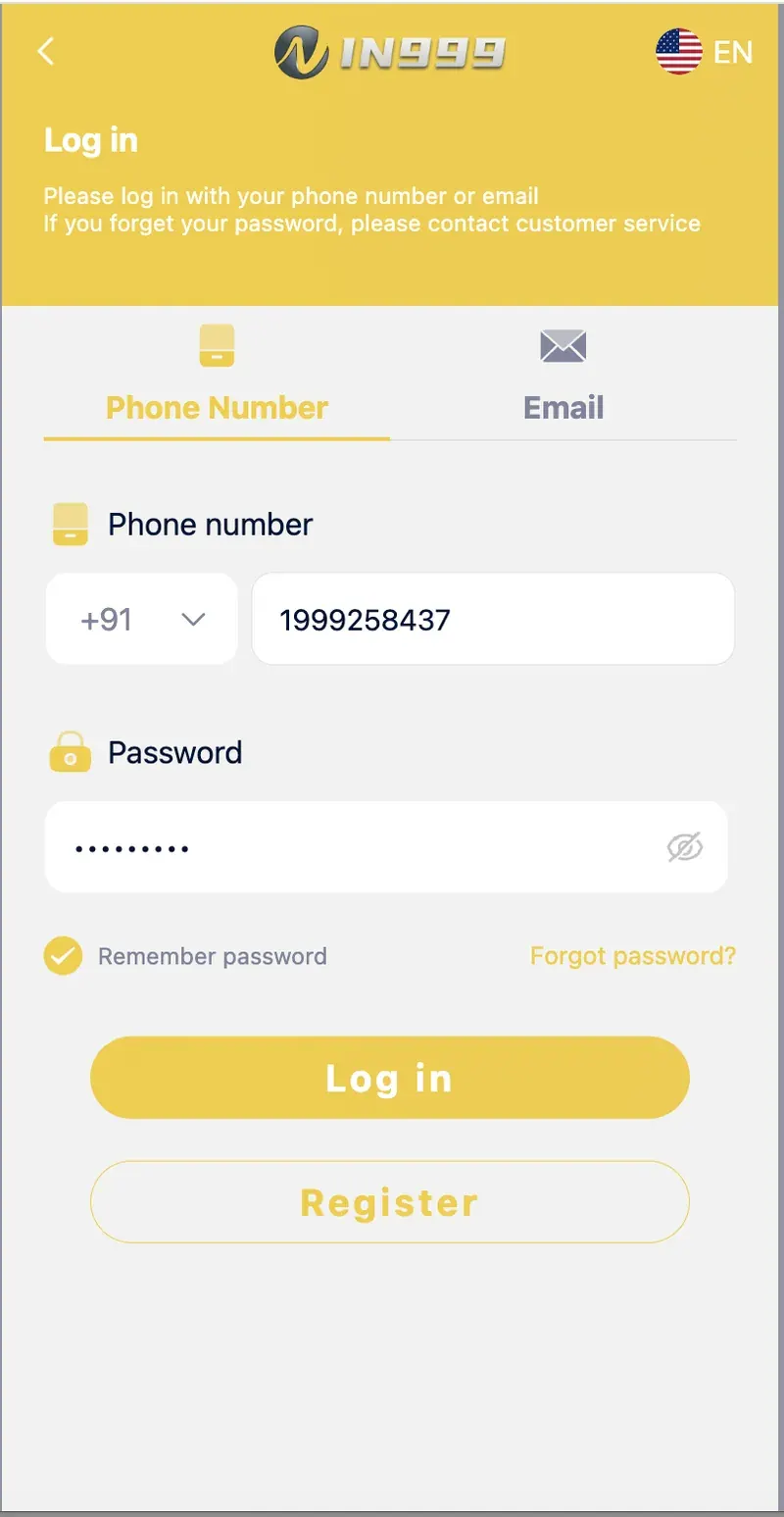
Check the country code dropdown on the in999 login screen. It must show +91 (India). If the dropdown shows a different code, the OTP goes to a number that is not yours. Change it and request a fresh OTP.
5. Clear your SMS inbox
If your SMS inbox has thousands of messages (especially on Android), new messages can get blocked. Delete old promotional SMS, then request a fresh OTP. This is a rare but real issue on budget Android devices.
6. Check your email spam folder
If you registered with an email address, the OTP may be delivered by email instead of SMS. Open your email and check Spam, Promotions, and Updates folders. Mark the sender as "Not spam" so future OTPs land in the inbox.
7. Contact in999 customer service
If none of the above works, open the in999 app or the official website, go to the Self Service Center, and select the OTP-related query. A customer service specialist will handle the issue manually. Response time is typically within a few hours.
When OTP is actually needed
in999 does not send OTP for every login. If you remember your password, you can log in without OTP from the same device you have used before. OTP is only required in the following cases:
- First-time login on a new device. The platform verifies that the new device belongs to the account owner.
- Password reset. The Forgot password flow sends an OTP to your registered number or email.
- Account recovery. If you have lost access and need to re-verify your identity.
- Suspicious activity detected. If the platform notices a login from an unusual location, it may request OTP verification.
Login without OTP
If you remember your password, use the direct password login instead of OTP. Here is how:
- Open the in999 login screen.
- Choose the Phone Number tab.
- Enter your +91 mobile number.
- Enter your password in the password field.
- Tap Log in.
If the platform does not require OTP for this login attempt, you will be taken straight to the home screen. If OTP is required, work through the fixes above.
For a complete walkthrough of the login flow, see the in999 Login Guide.
How to prevent OTP issues in the future
- Keep DND off during hours you might need OTP. If you have a scheduled DND window at night, avoid logging in during that time.
- Save the in999 sender ID. Once you receive your first OTP, add the sender to your contacts. Some phones prioritise messages from saved contacts even with DND on.
- Keep your SMS inbox under 500 messages. Regular clean-up prevents the "inbox full" issue.
- Do not change your mobile number without updating in999. If you change SIMs, transfer your in999 account to the new number via the Self Service Center before you need to log in.
- Enable Remember password only on your personal device. If you log in with a saved password, you avoid the OTP step entirely.
When to contact support
After trying all seven fixes, if the OTP is still not arriving, contact in999 customer service through the Self Service Center. Provide the following information:
- Your registered mobile number (masked — for example, 98XXXXXX75).
- The exact time you requested the OTP.
- Whether the issue is on SMS or email.
- The device and network you are using.
Frequently asked questions
OTP delivery usually fails because of DND being active on your SIM, network congestion, incorrect country code, or SMS inbox filters. Restart your phone, disable DND, confirm the +91 code, and request a fresh OTP.
Wait 60 seconds, restart your phone, disable DND, verify the +91 country code, clear your SMS inbox, and request a fresh OTP. If none works, contact in999 customer service via the Self Service Center.
In999 OTP usually arrives within 30 seconds. If it does not arrive within 60 seconds, the OTP has likely been blocked or delayed. Request a new one after the standard fixes.
Yes. If you remember your password, you can log in directly using the Phone Number tab. OTP is only required during account recovery, first-time login on a new device, or password reset.
Yes. If you registered with an email address, in999 sends OTP or a verification link to that email. Check Spam, Promotions, and Updates folders if the OTP does not appear in your inbox.
Yes. In999 OTP delivery is completely free. There is no charge for receiving OTPs from the platform.
Summary
The in999 OTP issue is almost always caused by DND, network congestion, or a wrong country code. The seven fixes above resolve the problem for nearly every user within two minutes. If none of them work, contact in999 customer service through the Self Service Center. For a complete login walkthrough, read the in999 Login Guide.